
New to SparkED? These six short steps take you from a new account to your certificate. Each one takes a minute or two.
Your SparkED account (also called your SparkED ID) is one sign-in for everything: this website, your courses in the LMS platform, and your certificates.
1. Create your SparkED account
- Select My account at the bottom of any page, then Sign in or create your SparkED ID. (Buying a course takes you there too.)
- On the SparkED sign-in page, select Create account (under the Sign in button).
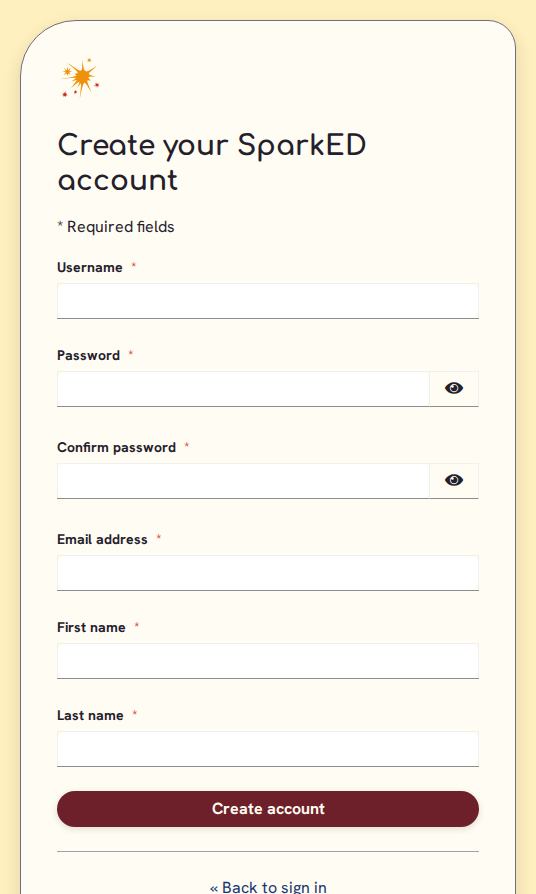
- Fill in a username, a password (twice), your email address, and your first and last name. Then select Create account.
2. Confirm your email
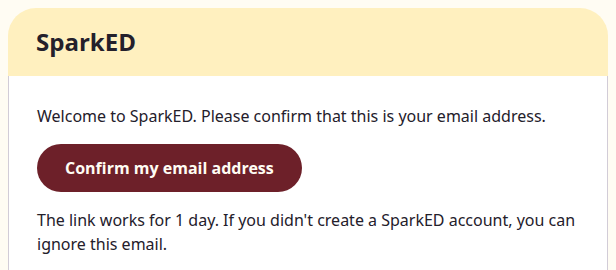
- We send an email to the address you gave. Open it and select the link to confirm your email address.
- The link works for a limited time. No email after a few minutes? Check your spam or junk folder.
3. Sign in
- Select My account at the bottom of any page, then Sign in or create your SparkED ID.
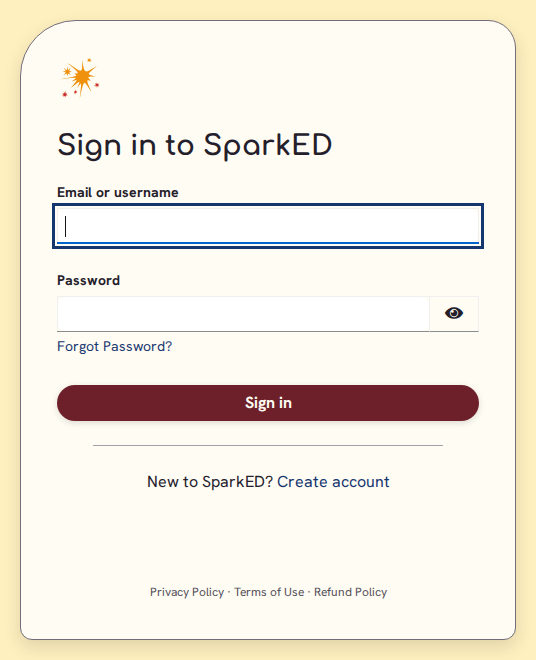
- Enter your email (or username) and your password, then select Sign in. You come back to the website, signed in.
- Forgot your password? Select Forgot Password? on the same page and we email you a link to choose a new one.
4. Find and buy a course
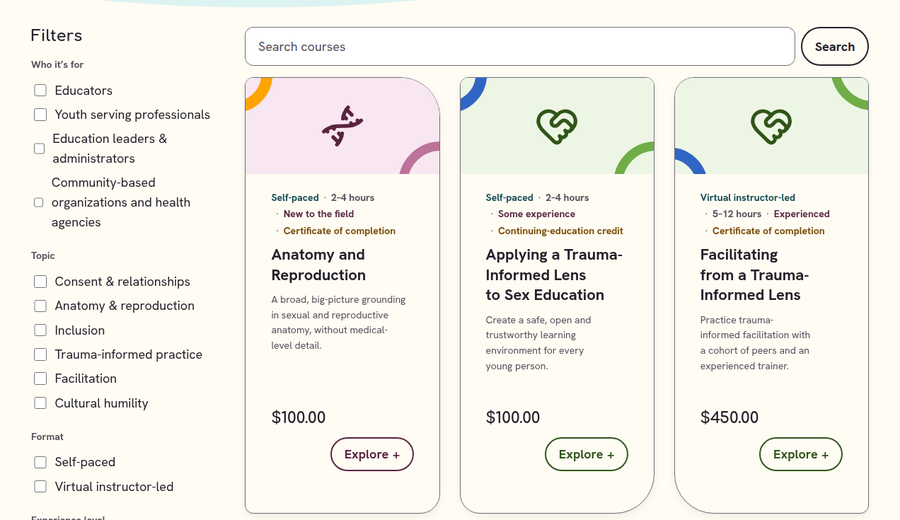
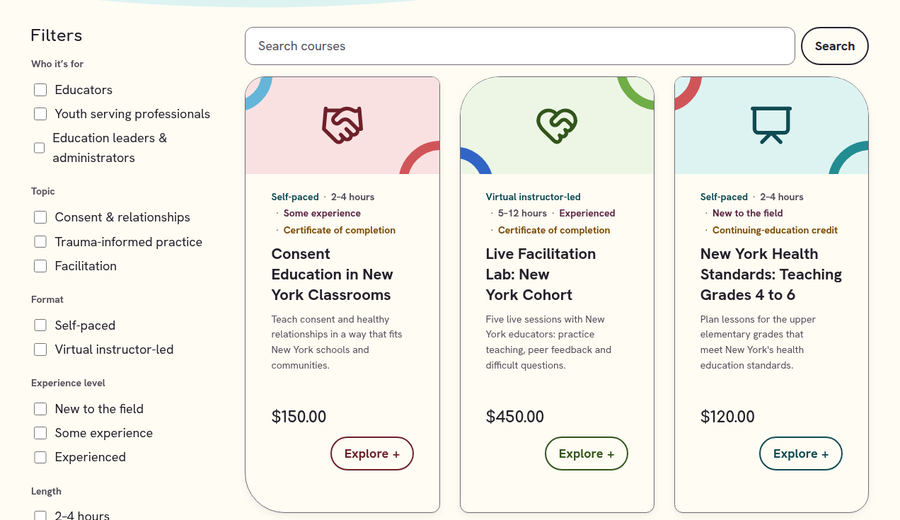
- Select Browse courses at the top of the page, or open the Course Catalog. Search by name, or use Filters to narrow the list.
- Teaching in New York? Use the New York course catalog: it lists the courses made for New York educators.
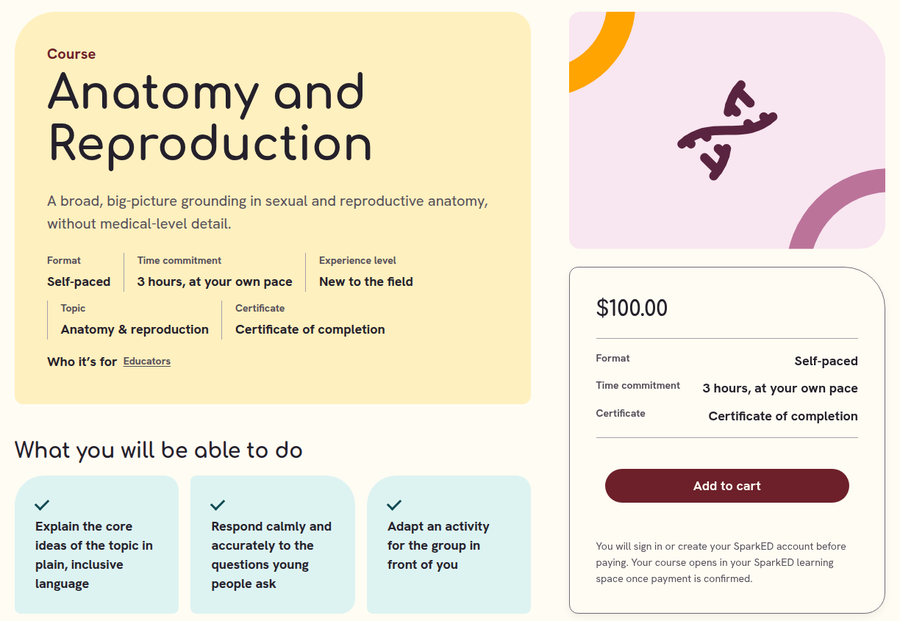
- Select Explore on a course to read about it, then select Add to cart.
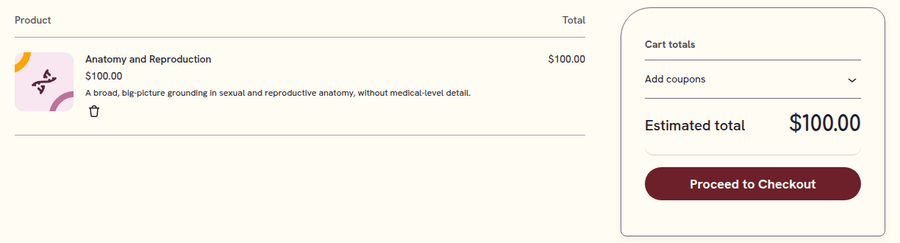
- Open your cart and select Proceed to Checkout. Sign in (or create your account) when you are asked to, fill in your details, and pay. We email you a receipt.
5. Open your course in the LMS platform
- After you pay, your course is ready in the LMS platform, where you take it.
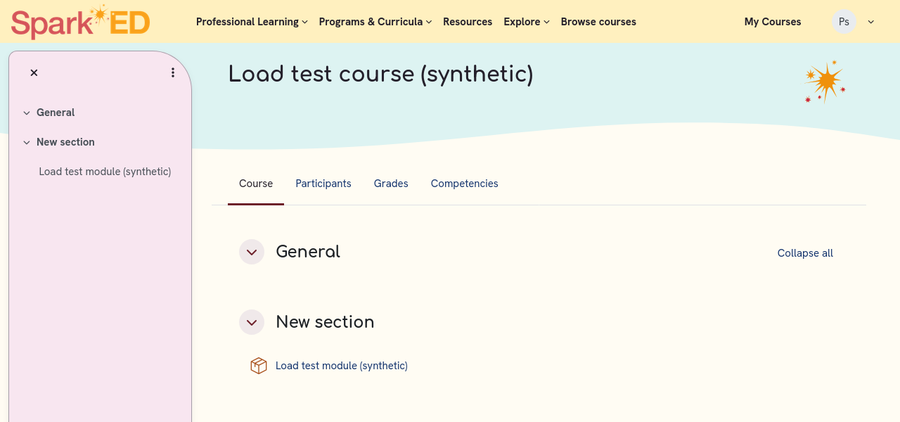
- Go to My account (at the bottom of any page) and select the My Courses tab. You go straight to your courses: you are already signed in with the same SparkED account.
- Taking courses on more than one SparkED learning site (New York's, for example)? Each site has its own My Courses tab, named for that site.
- Select a course to open it, and work through it in order. You can stop and come back at any time: the LMS platform remembers where you were.
6. Find your certificate
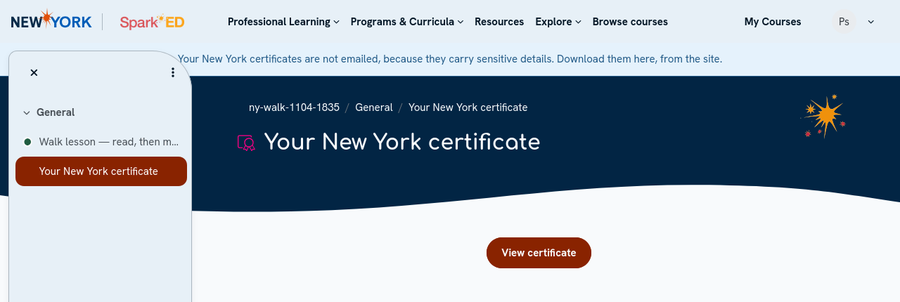
- Your certificate is the last step of your course. It opens once you have finished the course.
- Select it to view it, then download it as a PDF to save or print.
- All your certificates are kept in the LMS platform: open the menu under your name and select Certificates.
Need a hand?
We are happy to help. Contact us and tell us what you were trying to do.